
Advanced Settings
The Advanced tab has 4 options: a backup for when your AI service fails, where the writing runs, live preview, and your business details.
To open it, go to “WP Wand > Settings” and click on the Advanced tab.
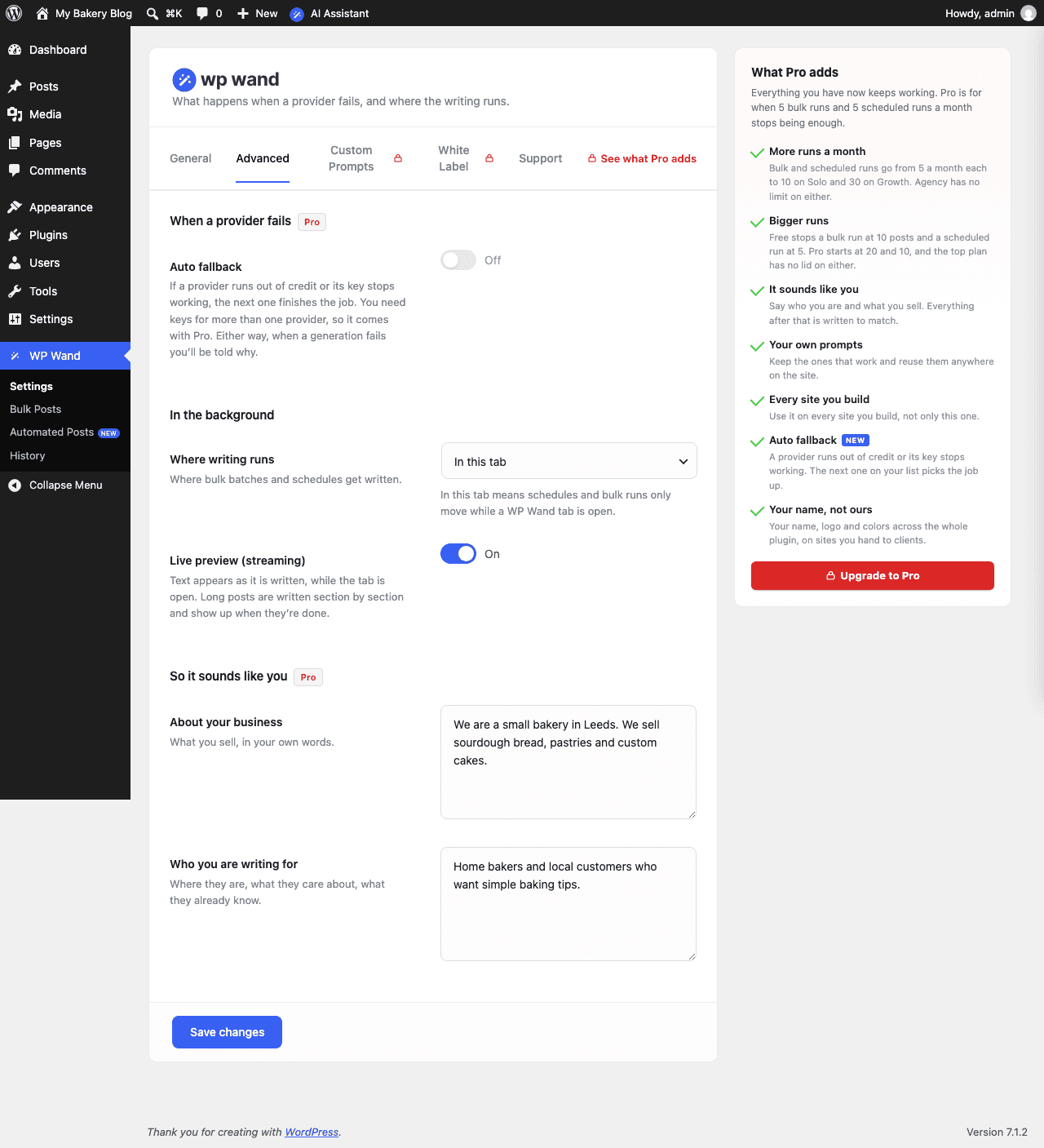
We will briefly explain all the options here.
Auto fallback (Pro)
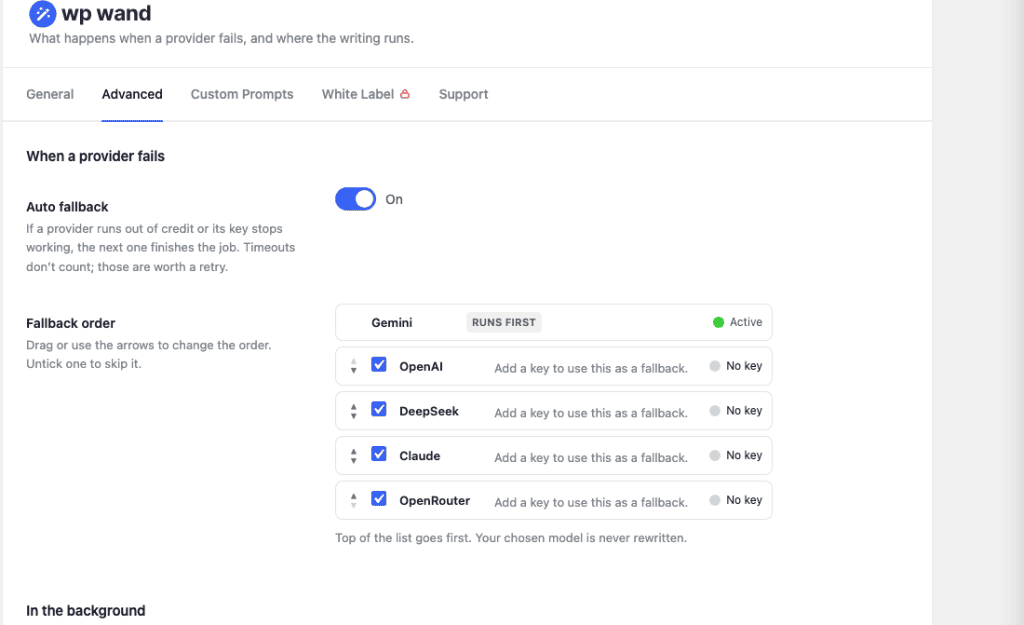
A provider is the AI service that does the writing, like OpenAI or Google Gemini. Fallback means a backup. If your provider runs out of credit or its API key stops working, WP Wand switches to the next provider and the post still gets written. A slow answer doesn’t count, only credit and key problems do.
To use this, you need to add an API key for more than one provider in “WP Wand > Settings”.
When you switch it on, you’ll see Fallback order. The provider of the model you picked on the General tab is at the top and marked Runs first. Drag the others or use the arrows to set the order they are tried in, and untick one to skip it.
Where writing runs
This decides where the posts of a bulk batch get written. There are 3 options:
- In this tab: The posts only get written while the Bulk Posts page is open in your browser. If you close it, the writing waits. This is the default.
- On the server, when someone visits the site: Your site does the writing in the background, a little every time someone visits it. So, you can close the tab. But on a site with few visitors, the posts wait for the next visit and can come late.
- On the server, on a real clock: Your hosting account runs the writing on a timer, whether anyone visits the site or not. Hosting companies call this a cron job. When you pick this, the screen shows you two steps to set it up and a Test cron button. It works like the second option until you have done those two steps. If you are not sure about them, send them to your hosting support.
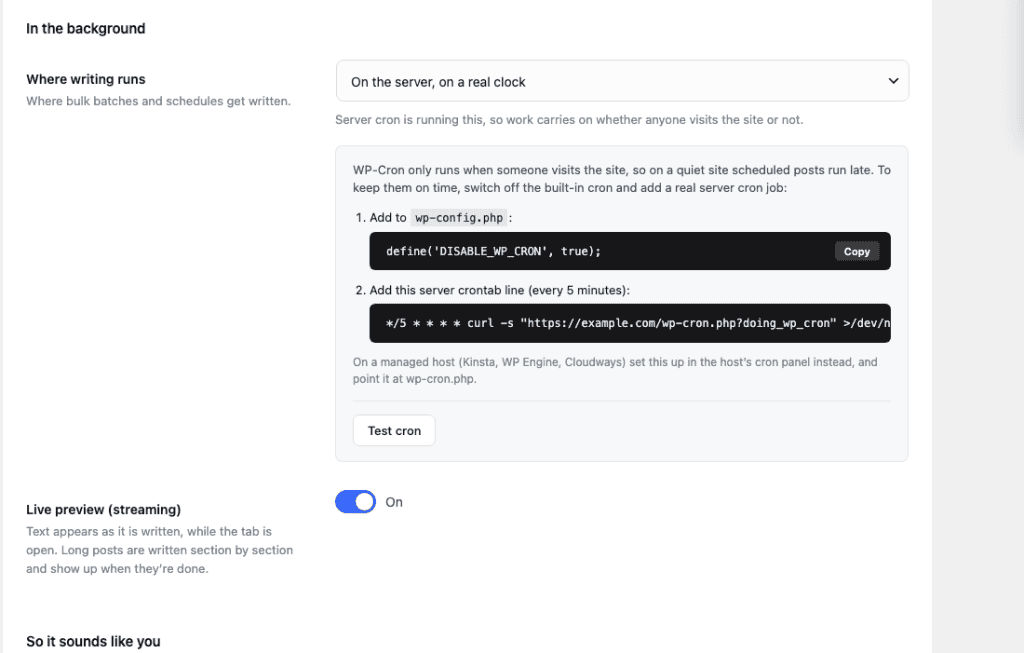
Schedules in Automated Posts don’t need a tab on any of the three options. But on a site with few visitors they can run late, until you add the cron job from the third option.
We recommend the third option, with its two steps done, if you use Automated Posts on a site with few visitors.
Live preview (streaming)
When this is on, you see the text appear while the AI is still writing it. When it’s off, you see the result only when it’s finished. Long posts are always written one section at a time, so they show up when they are done.
So it sounds like you (Pro)
Fill in these two boxes and WP Wand uses them when it writes.
- About your business: What you sell, in your own words.
- Who you are writing for: Your readers. For example: “Home bakers in the UK who are new to sourdough.”
Bulk Posts and Automated Posts use them every time. In the AI Assistant, tick Business Details or Targeted Customer to use them.
Don’t forget to click on Save changes.
