
Custom Prompts & AI Characters
Custom Prompts lets you save your own prompts and AI characters. So, you can use them again in the AI Assistant without typing them every time.
Custom Prompts is a Pro feature. To open it, go to “WP Wand > Settings” and click on the Custom Prompts tab.
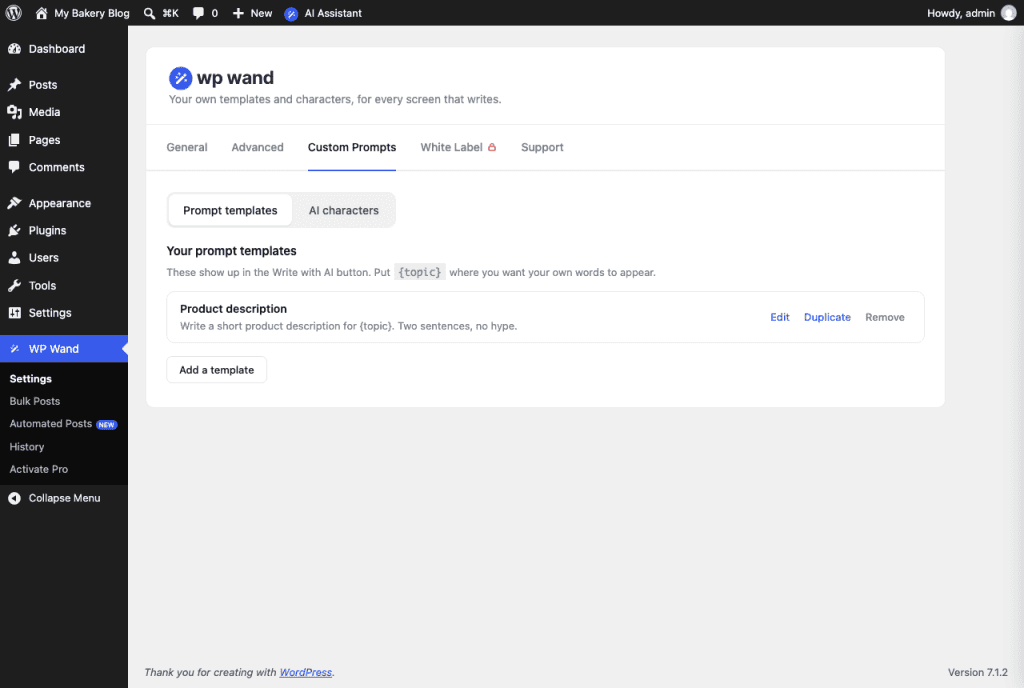
How to add a prompt template
A prompt is the instruction you give to the AI. A prompt template is a prompt you save, so you can use it again and again.
Step 1: Click on Prompt templates and then on Add a template.
Step 2: Give it a Template name.
Step 3: Write your Prompt. Put {topic} in the place you will fill in each time you use it. For example: “Write a short product description for {topic}. Two sentences, no hype.”
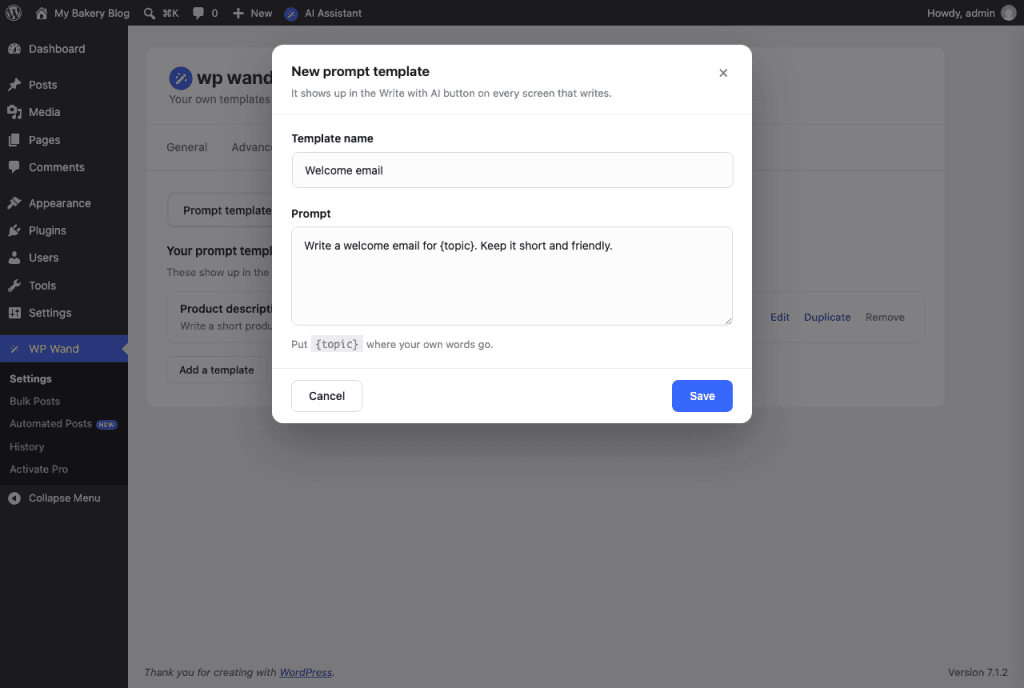
Step 4: Click on Save.
That’s it! Your template now shows up in the AI Assistant, in the same list as the other templates.
How to add an AI character
An AI character tells the AI who it is writing as. So, everything comes out in that voice.
Step 1: Click on AI characters and then on Add a character.
Step 2: Give it a Character name.
Step 3: Under Character, describe who is writing. For example: “You write product reviews for a small coffee roaster. Plain words, no hype.”
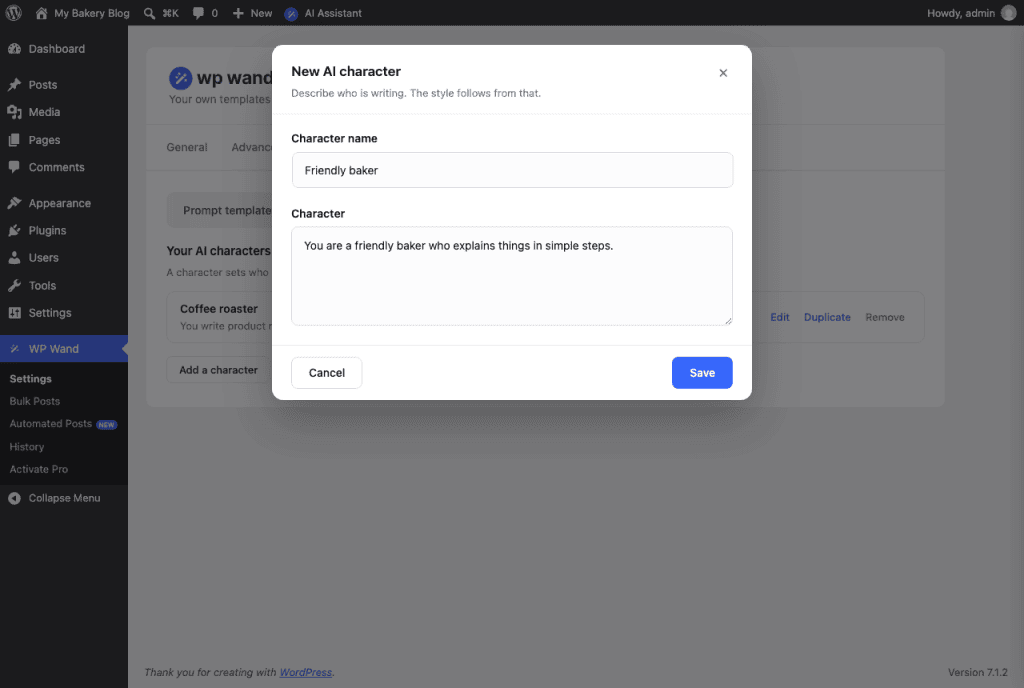
Step 4: Click on Save.
That’s it! Now you can pick it from AI Character in the AI Assistant.
How to edit or remove a template or character
Every template and character has Edit, Duplicate and Remove next to it.
Your templates and characters are used in the AI Assistant. Bulk Posts and Automated Posts have their own settings and don’t use them.
