
Bulk Posts
Bulk Posts writes many blog posts in one go. You give it a list of headlines and it comes back with a finished post for each one.
To use it, go to “WP Wand > Bulk Posts” from WordPress menu.
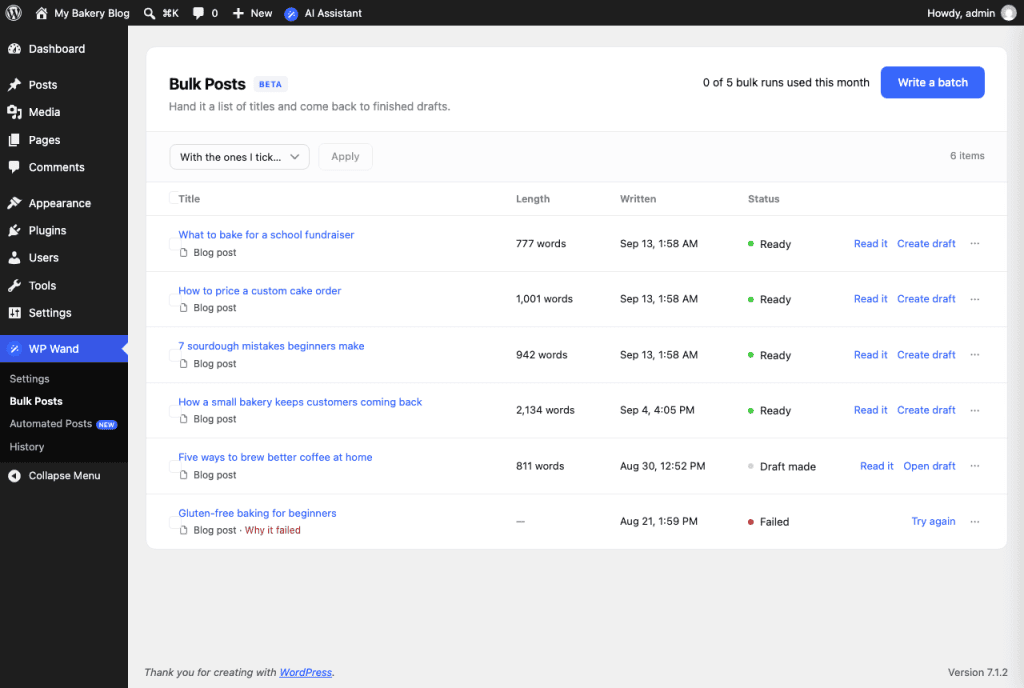
How to write a batch
Click on Write a batch. You’ll go through 3 steps.
Step 1: On Titles, choose where the headlines come from.
- My own headlines: Paste your headlines, one per line. Each one becomes its own post.
- AI headlines: Write a Topic, set How many headlines you want and click on Suggest headlines. You can edit or remove any of them in the next step.
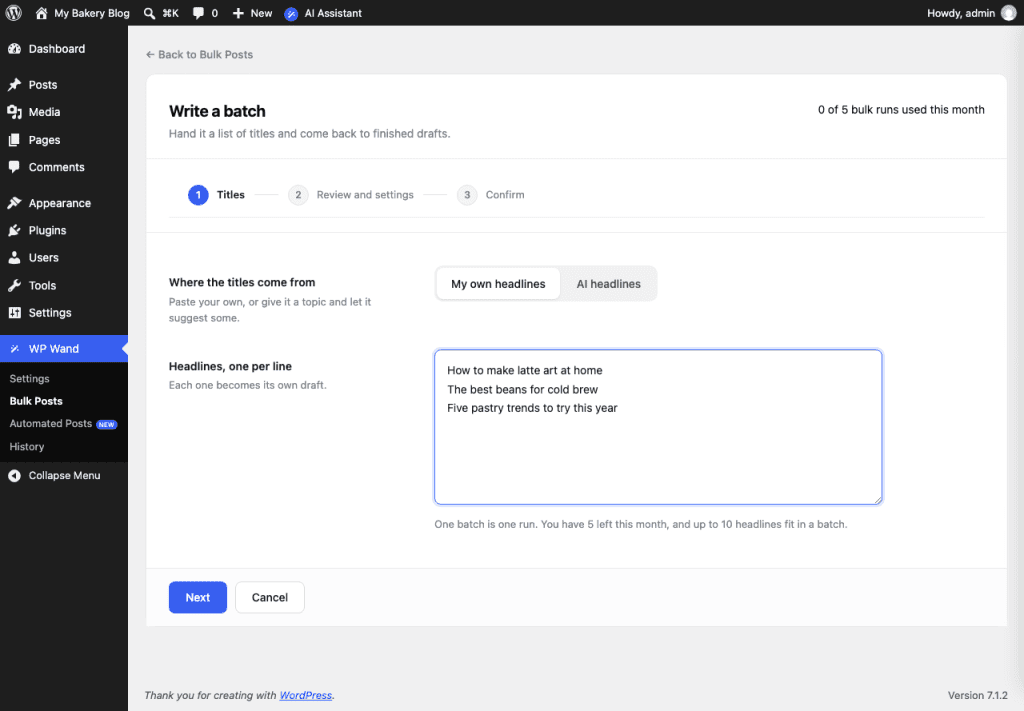
Now, click on Next.
Step 2: On Review and settings, check the headlines. You can edit any of them, remove one with the × button, or click on Add another. Then set how the posts should be written:
- Template: The type of post. You can pick Blog post, Listicle (a list post, like “7 ways to…”), How-to guide, Product review, Comparison or News piece.
- Writing tone: How the post should sound. Start typing and pick one from the list.
- Roughly how long: Leave it on “Let the AI decide”, or drag it up to 4,000 words. The AI may write a little more or a little less than the number you set.
- Keywords to work in: Press Enter after each one.
- Add an FAQ section and Add a contents list: Both are on to start with. Switch off the ones you don’t want. A contents list is a table of contents at the top of the post.
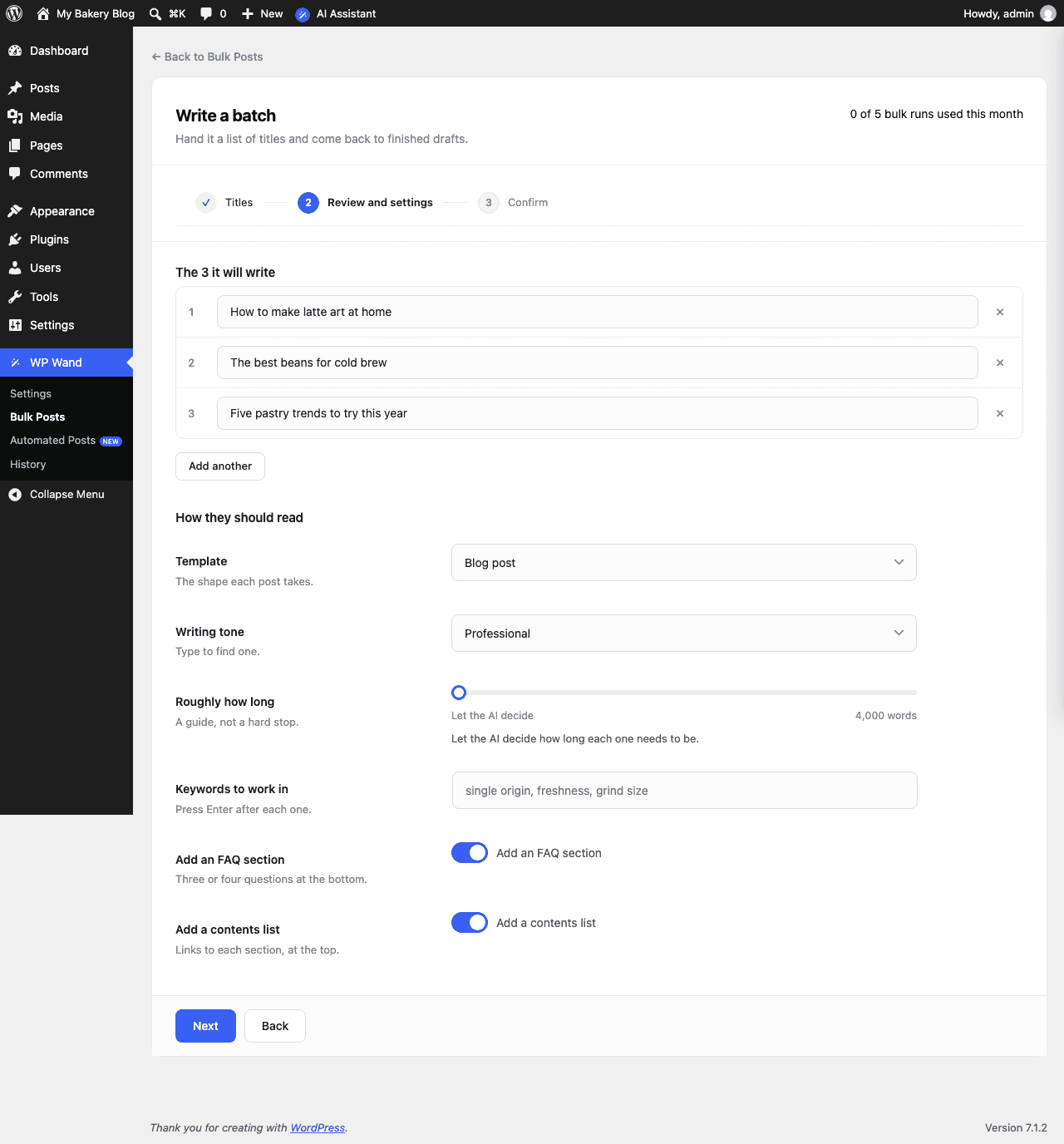
Now, click on Next.
Step 3: On Confirm, check the summary. Then click on Start writing.
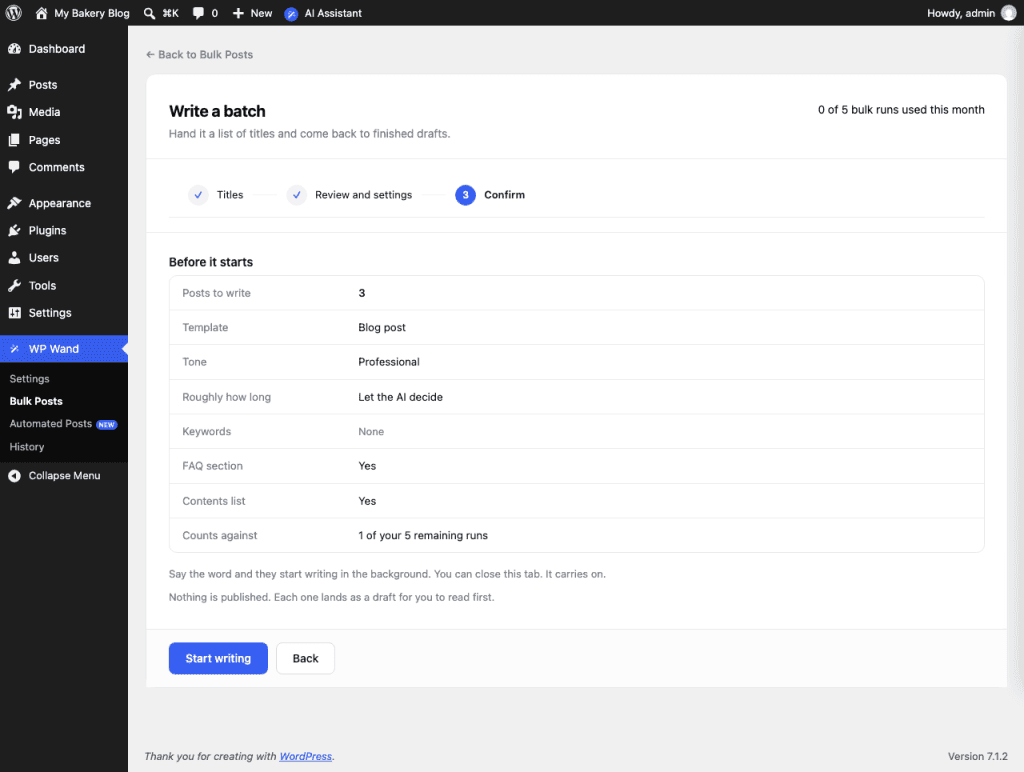
That’s it! Nothing is published. Each post lands in the list for you to read first.
Keep the Bulk Posts page open
By default, the writing runs in your browser tab. So keep the Bulk Posts page open until the batch is done. If you close it, the batch waits and continues when you open the page again.
The screen says “You can close this tab. It carries on.” That is only true when Where writing runs is set to one of the two “On the server” options. To change it, go to “WP Wand > Settings” and click on the Advanced tab. We have covered this in the Advanced Settings article.
What to do with the finished posts
A post shows Ready when it’s written.
- Read it: Shows you the whole post, so you can decide if you want to keep it.
- Create draft: Saves it as a WordPress draft. The status changes to Draft made and you’ll see an Open draft button.
- ⋯ button: Here you’ll find Read it, Write again and Remove.
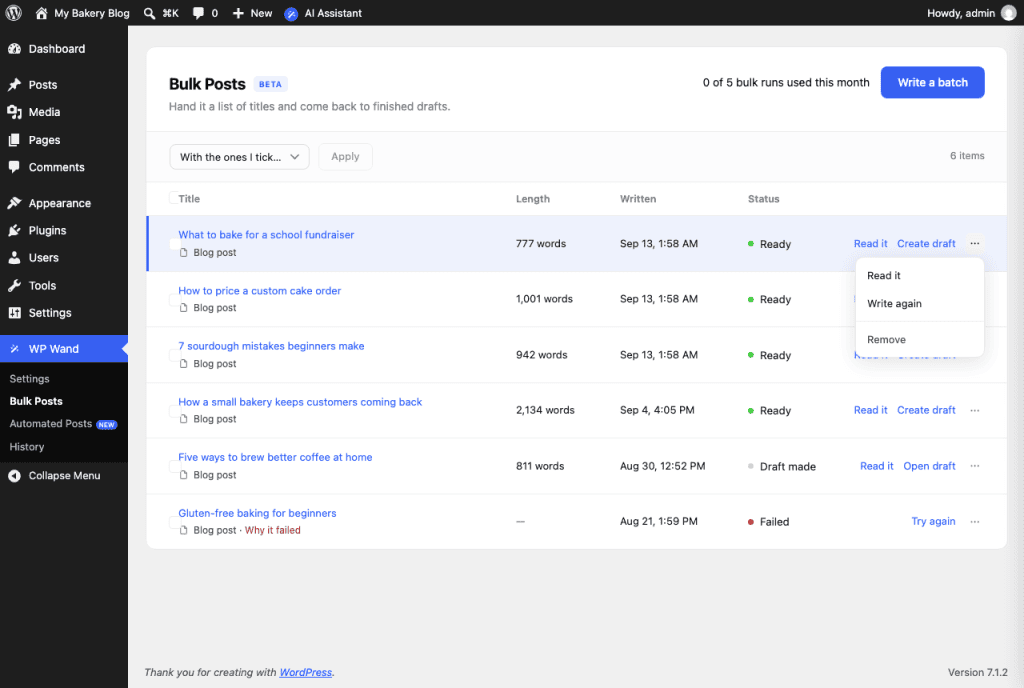
To handle many posts at once, tick them, choose Create drafts or Remove from the “With the ones I tick…” dropdown and click on Apply.
If a post fails
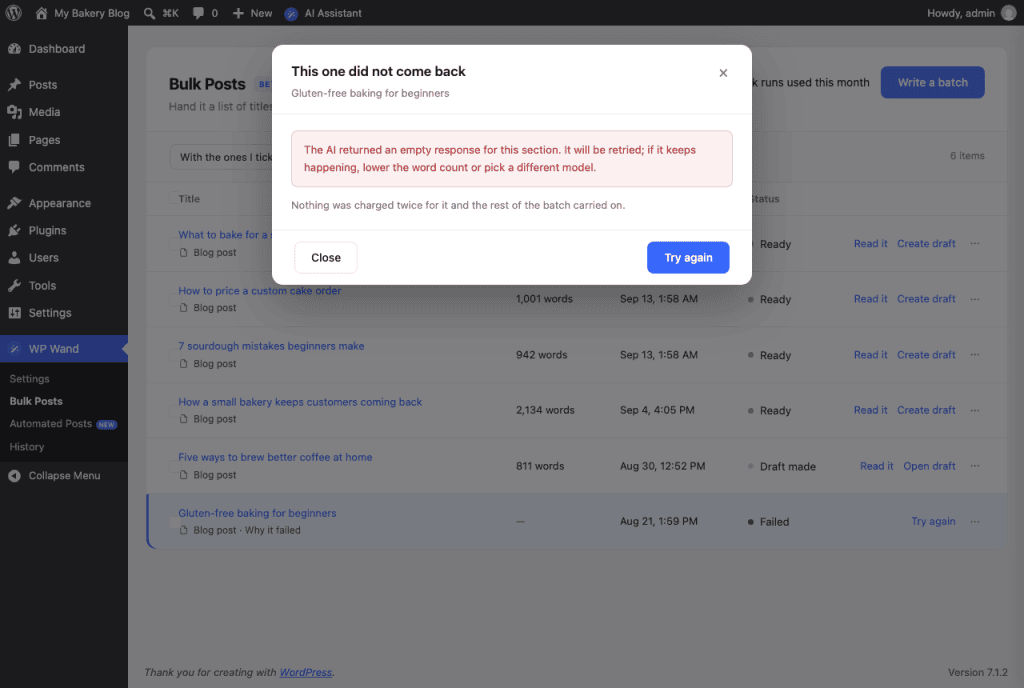
The post shows Failed. Click on Why it failed to see the reason, then click on Try again. The rest of the batch continues.
How many runs do you get?
One batch uses one bulk run, no matter how many posts are in it. On the free version you get 5 bulk runs a month, with up to 10 posts in a batch. To get more, see the Plans & Limits article.
