
WP Wand Pro
White Label
White Label puts your own name and logo on WP Wand. So, when you hand a site over to a client, they see your brand instead of ours.
White Label comes with the Agency plan. To open it, go to “WP Wand > Settings” and click on the White Label tab.
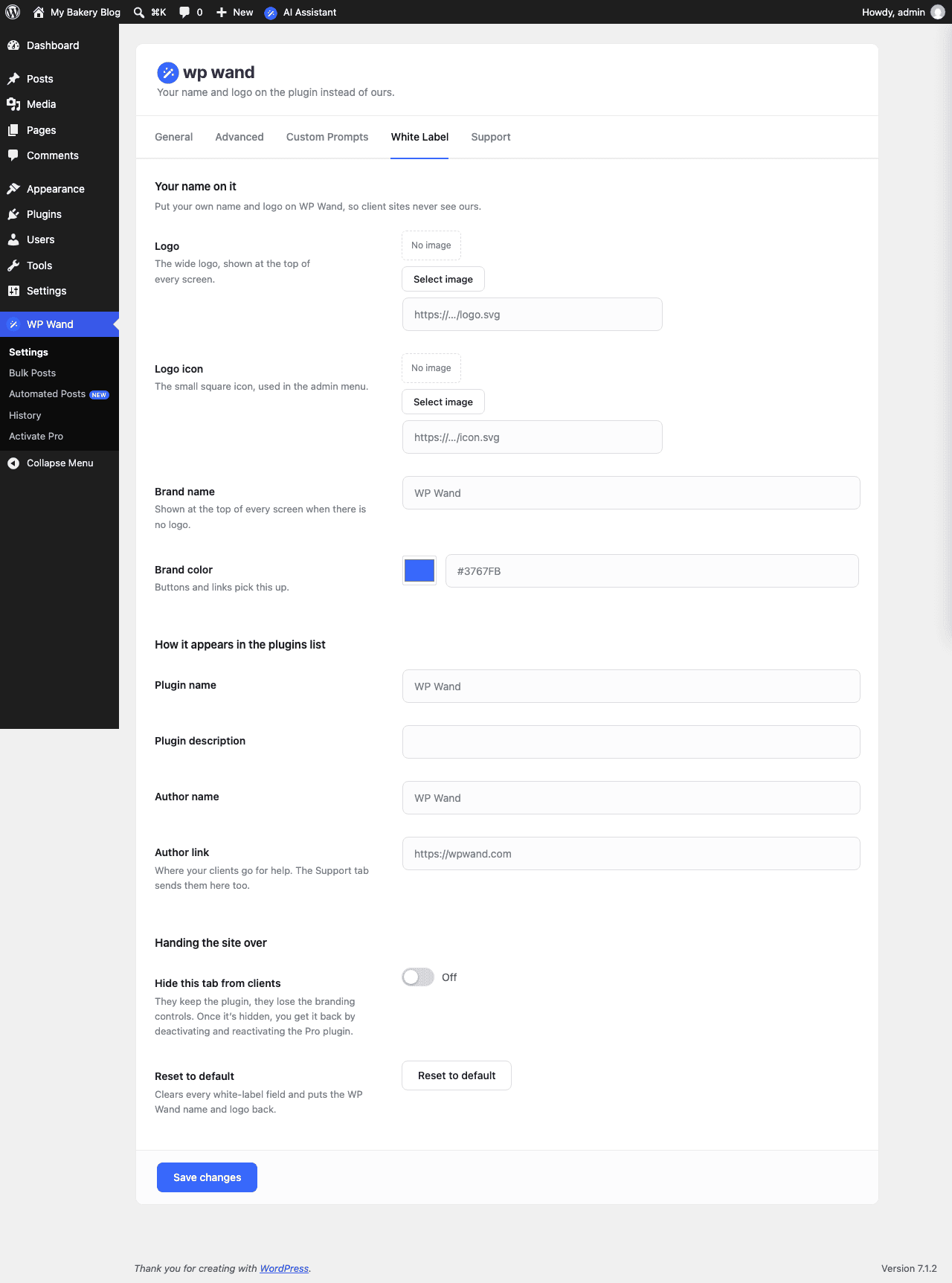
We will briefly explain the options here.
Your name on it
- Logo: The wide logo, shown at the top of the Settings screen.
- Logo icon: The small square icon, shown in the WordPress menu.
- Brand name: Replaces “WP Wand” in the WordPress menu and at the top of the AI Assistant.
- Brand color: The color of the buttons and links on the Settings screen and in the AI Assistant.
Add a logo together with your brand name. Without one, the Settings screen keeps showing ours.
Where your clients go for help
- Author link: Your website. The Support tab sends your clients to this link when they need help.
Handing the site over
- Hide this tab from clients: Hides the White Label tab, so your client can’t change the branding. Do this last. Once it’s saved, the tab is hidden for you too.
- Reset to default: Clears every white-label field and puts the WP Wand name and logo back.
Don’t forget to click on Save changes.
